

OUSON HEALTH · STEP BY STEP
Set measurement reminders
Create separate schedules for each measurement and check your phone’s notification permission.
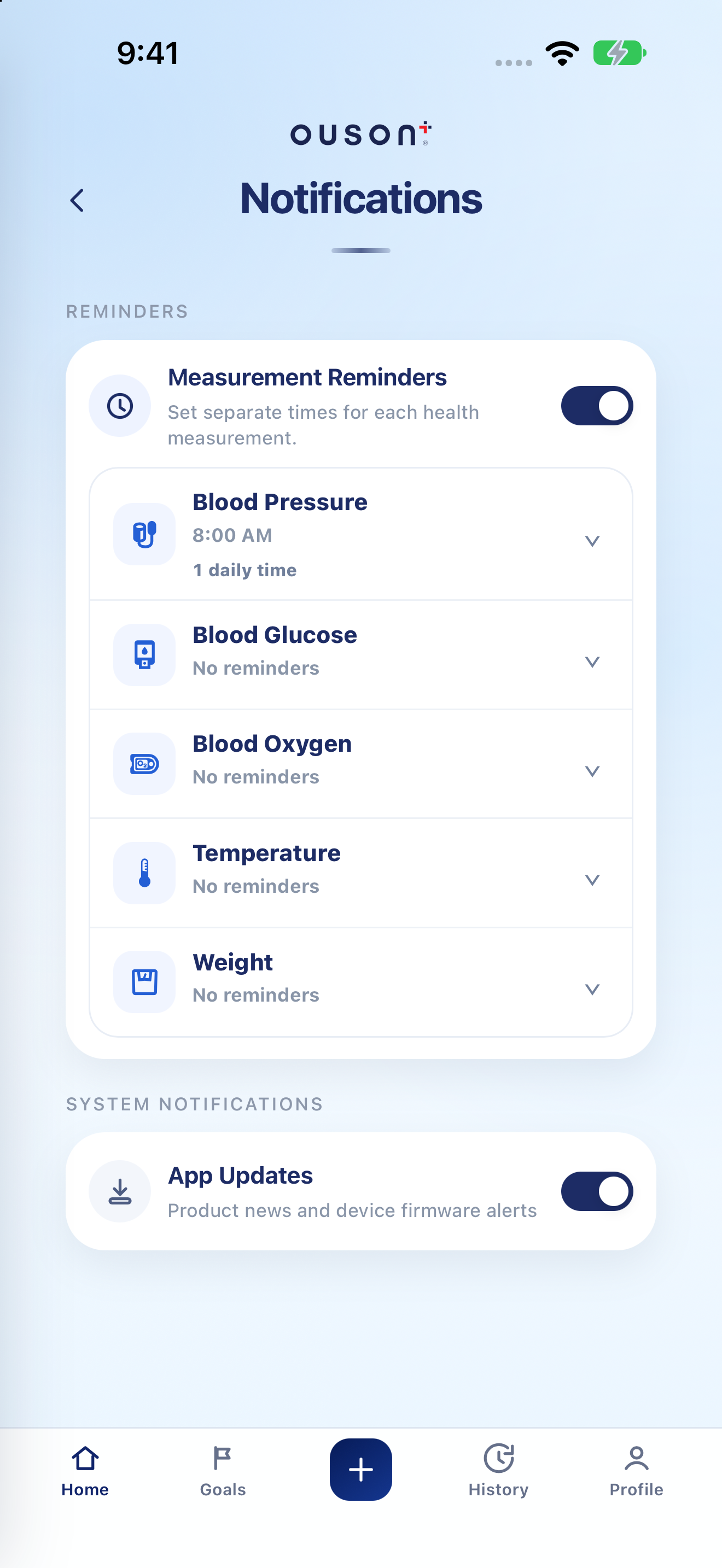
See the highlights on the full example screen
 235
235
Open Profile → Notifications
From Profile, open Notifications. The page separates Measurement Reminders from the App Updates setting.
Enable Measurement Reminders and permission
Turn on Measurement Reminders. If your phone asks, allow notifications for OUSON Health. An in-app switch cannot override a notification permission that is blocked in the phone’s settings.
Open original screenshot ↗
Choose a measurement and add its times
Expand a measurement row, such as Blood Pressure. Add the daily times you want using its time controls. Set Blood Glucose, Blood Oxygen, Temperature and Weight separately; a time on one measurement does not set the others.
Open original screenshot ↗
Check the saved schedule
After changing the time controls, check the status message and the times listed for that measurement. Remove a time you no longer need, then check the row again. Choose times that fit your own recording routine; the screenshot’s time is an example.
Keep App Updates separate
App Updates is a separate notification preference. It does not create a measurement reminder schedule.
Open original screenshot ↗
If a reminder does not appear
Check the overall switch, the saved time, the phone’s notification settings for OUSON Health and any Focus/Do Not Disturb or battery restrictions. Check schedules on the phone where you expect the reminder; device settings can affect delivery.
IF YOU NEED A HAND
Questions and quick checks
Can I add more than one daily time?
Yes. Open the measurement row and use its add-time control, then review the saved times. The interface prevents adding beyond the limit supported by your version.
Does changing BP times also change glucose reminders?
No. Each measurement has its own schedule. Expand and review the relevant row.
OUSON Health helps you record and review measurements. It does not provide medical diagnosis or treatment. Values and ranges in teaching screenshots are examples, not recommended personal targets.