

OUSON HEALTH · STEP BY STEP
Create an account and sign in
Choose your sign-in method, verify a new account and recover access when needed.
See the highlights on the full example screen
 12
12
Choose how to sign in
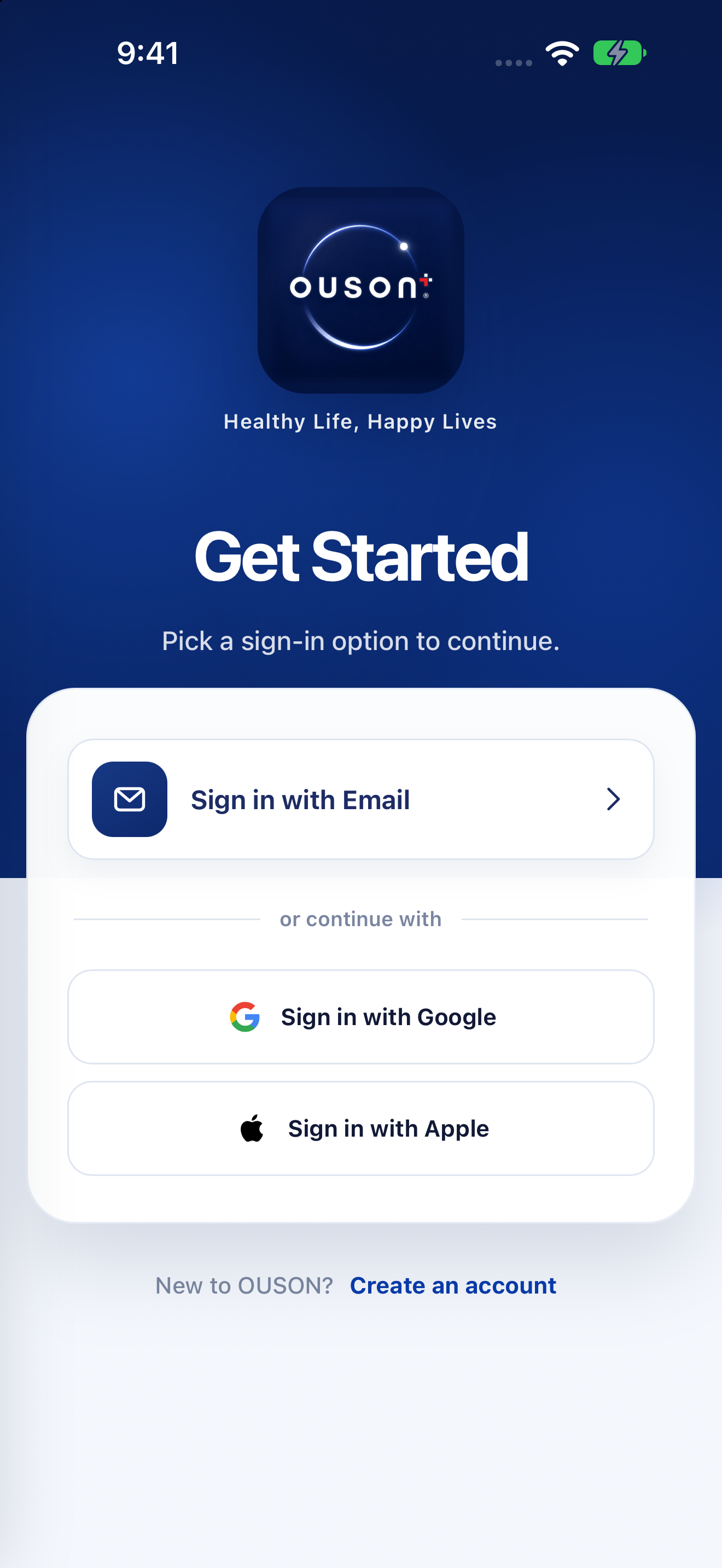
Open OUSON Health. Choose Sign in with Email, Sign in with Google or Sign in with Apple, using the method linked to your account. Follow the secure sign-in prompts on your device.
Open original screenshot ↗
Create a new account
If you are new, tap Create an account. Enter your name, email, mobile number and password, review the Terms of Service and Privacy Policy, then submit the form. Review the reminder preference before continuing.
Open original screenshot ↗
Verify your email
Open the verification email and enter its code in the app. Tap Verify Email. If needed, use Resend Code or Use another email. Check spam or junk folders and use the latest code requested.
The screenshot shows the starting screen. The verification fields appear after you submit the registration form. Never share a verification code with another person.
Recover an email-and-password account
Open the email sign-in form and select Forgot Password. Enter the email for that account, request the verification code and follow the reset steps. Create and confirm the new password, then return to sign in.
If you normally use Apple or Google, use that same sign-in method. Contact App Support if you cannot access the registered email.
Check that you reached the right account
After sign-in, open Profile and check the displayed account email. Use the same account when you want to find existing records and registered devices. Loading or connection errors are not a reason to register the same device again.
IF YOU NEED A HAND
Questions and quick checks
I did not receive a code. What should I check?
Check that the email is correct, check spam/junk, and wait for the current request before requesting another code. Use the newest code. If delivery still fails, contact App Support without sharing your password or verification code.
Do I need to add a device before recording a measurement?
Device registration and measurement entry are separate features. You can use manual measurement entry without using Smart Scan or registering a warranty.
OUSON Health helps you record and review measurements. It does not provide medical diagnosis or treatment. Values and ranges in teaching screenshots are examples, not recommended personal targets.