

OUSON HEALTH · STEP BY STEP
Add a device and view warranty details
Choose the right registration route, enter accurate purchase details and review the returned status.
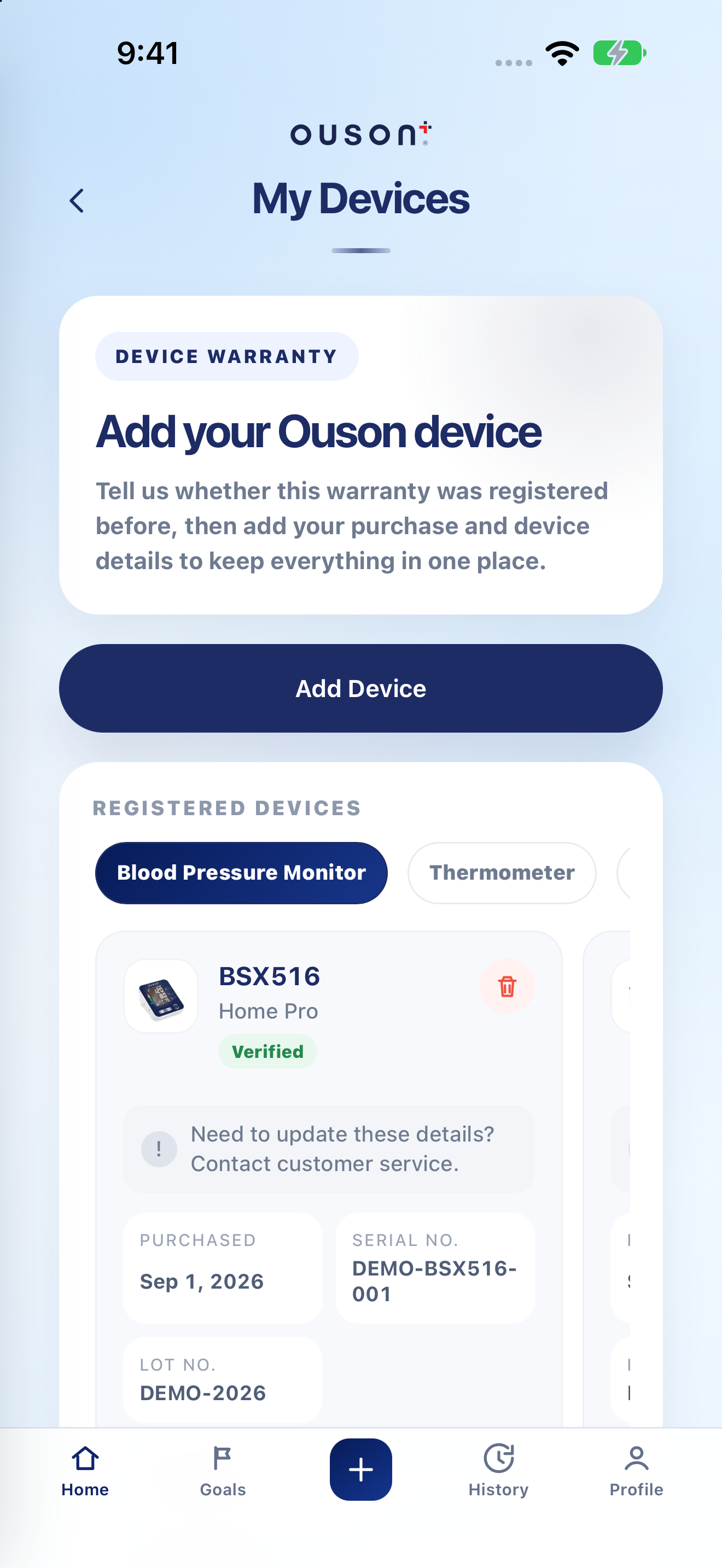
See the highlights on the full example screen
 15
15
Open My Devices and Add Device
In Profile, tap My Devices, then Add Device. Have the device, purchase details, order number, serial number and lot number ready.
Open original screenshot ↗
Say whether the warranty was registered before
Choose Yes, registered before for an existing registration that needs verification, or No, register now for a new registration. Follow the fields shown for that route. Existing registrations may require manual verification; check the returned status.
Enter the purchase and device details
Select Purchase From, enter the Order ID / Order Number, and choose Device Type, Model and Purchase Date. Enter Serial No. and Lot No. separately. Tap the ? beside a field if you need help finding it on the device or packaging.
Complete the required personal and address fields shown. Tick the paid extended-warranty option only if you purchased that extension with the order; it is not the same as an included free-year benefit.
Review and submit the registration
Check every value, then tap Verify & Add Device. Read the returned confirmation or error. A Pending/manual-review result is not a Verified warranty. If verification fails, check the original device and purchase details or contact support.
Find the device and its warranty status
In Registered Devices, choose the device category and read the model, purchase date, status and coverage details. Use the confirmed details shown for your own device; dates and identifiers in the teaching screenshot are fictional.
Open original screenshot ↗
Ask for help before changing a verified record
If a verified device has incorrect details or the expected coverage is missing, contact OUSON with your order and device information. Do not repeatedly delete and re-register to try to change coverage. If you intentionally remove a device, read the app’s confirmation carefully.
IF YOU NEED A HAND
Questions and quick checks
Does tapping Add Device guarantee approval?
No. Registration depends on the submitted details and applicable verification. Read the returned status and the actual coverage for that device.
Where do I request repair or warranty service?
Registration stores device details. For a service request, read the warranty policy and use the warranty claim service, or contact support.
OUSON Health helps you record and review measurements. It does not provide medical diagnosis or treatment. Values and ranges in teaching screenshots are examples, not recommended personal targets.