
How to Use Smart Scan | OUSON Health
BEFORE YOU START
A reading on your monitor. A record in your app.
Take your measurement with your blood pressure monitor first, following its instructions. Keep the completed reading visible while you scan.
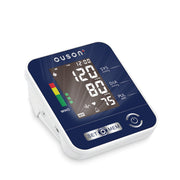
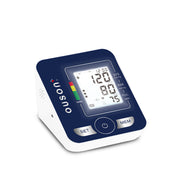
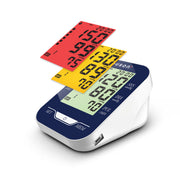
- Supported models: Home Pro · BSX516 and Travel Lite [Backlight Version] · BSX556.
- Use good lighting and keep the display sharp, face-on and free of reflections.
- For Travel Lite, turn on the monitor backlight before scanning.
Smart Scan copies numbers already shown on the monitor. Your phone does not measure blood pressure. Always compare the detected values with the monitor before saving.
Open Smart Scan
Open OUSON Health and go to Add Measurement. Choose Blood Pressure, then open Smart Scan.
Smart Scan appears in the blood pressure entry form.
Choose the monitor in front of you
Under Monitor model, select Home Pro · BSX516 or Travel Lite [Backlight Version] · BSX556. Match the model to your actual device.
If your model is unavailable or marked Coming Soon, enter the reading manually.
Tap Scan Now
Tap Scan Now. Allow camera access when your device asks, so the app can view the monitor display.
If camera access is blocked, check the camera permission for OUSON Health in your device settings, then reopen Smart Scan.
Keep the display inside the frame
Hold your phone parallel to the monitor screen. Keep the LCD upright, with all four screen corners visible inside the inner frame. Move closer or farther away until the display fits, then hold steady and follow the on-screen guidance.
The camera captures automatically when it is ready. Avoid glare, shadows over the digits and a steep viewing angle.
Keep the monitor reading visible. If the app asks for a retake, adjust the angle or lighting and try again.
Compare every detected value
On Confirm your reading, compare SYS and DIA with the monitor display. Check each digit carefully.
- Correct? Tap Confirm and fill to return the values to the entry form.
- Not correct? Tap Not correct, retake, or close the scanner and enter the correct reading manually.
Confirm and fill does not save the measurement. It only fills the form so you can review the record.
Review the record, then save
Check the filled values again. Review the date and time, and add a pulse value or note if needed. Tap Save Measurement.
Look for the save confirmation and check the record in History. If you enter an earlier reading, make sure its date and time match when you took it.
IF SOMETHING DOES NOT LOOK RIGHT
A few quick checks
The scanner cannot read the screen
Confirm the selected model matches your monitor. Keep the LCD face-on, sharply focused and inside the inner frame. Remove glare and shadows; for Travel Lite, make sure the backlight is on. Follow any retake guidance. You can close Smart Scan and use manual entry at any time.
The detected reading is different from the monitor
Do not accept an incorrect result. Choose Not correct, retake, or return to manual entry and type the values shown on the monitor. Recognition errors can happen, so always compare the values before saving.
I tapped Confirm and fill but cannot find a new record
Confirm and fill returns the detected values to Add Measurement. Review the form and tap Save Measurement to create the record, then check History.
Can I scan any blood pressure monitor?
This guide covers Home Pro BSX516 and Travel Lite [Backlight Version] BSX556. Use only the supported model shown as available in your version of the app. Other monitors and measurement types can use manual entry.
OUSON Health is for recording and reviewing measurements. It does not provide diagnosis or treatment. Follow your monitor instructions and consult a qualified healthcare professional about medical concerns.